How to Choose MINJCODE Thermal Receipt Printers
Choosing a thermal receipt printer is not just about print speed or price. At a busy checkout, a faded receipt, loose cable, or slow paper feed can interrupt service. The right device should fit your sales volume, counter space, point-of-sale system, and daily workflow. This guide introduces practical ways to compare MINJCODE thermal receipt printers without relying on a single headline specification. Small details matter. Paper width, connection type, operating-system compatibility, cutter design, and replacement-roll availability can all affect daily use. Product features may vary by model, so check the latest specifications before making a purchase.
There is no universal best choice. A compact printer may suit a small café, while a high-volume retail counter may need faster output and a more durable cutter. Think about where the printer will sit, how staff will connect it, and how often receipts are printed during peak periods. If possible, test compatibility with your existing POS hardware and software before rollout. Also consider setup instructions, warranty terms, and access to technical support; these details matter when equipment is used every day. A short product description cannot answer every operational question. Comparing real requirements with verified model information helps narrow the options and avoid paying for features your business will not use.
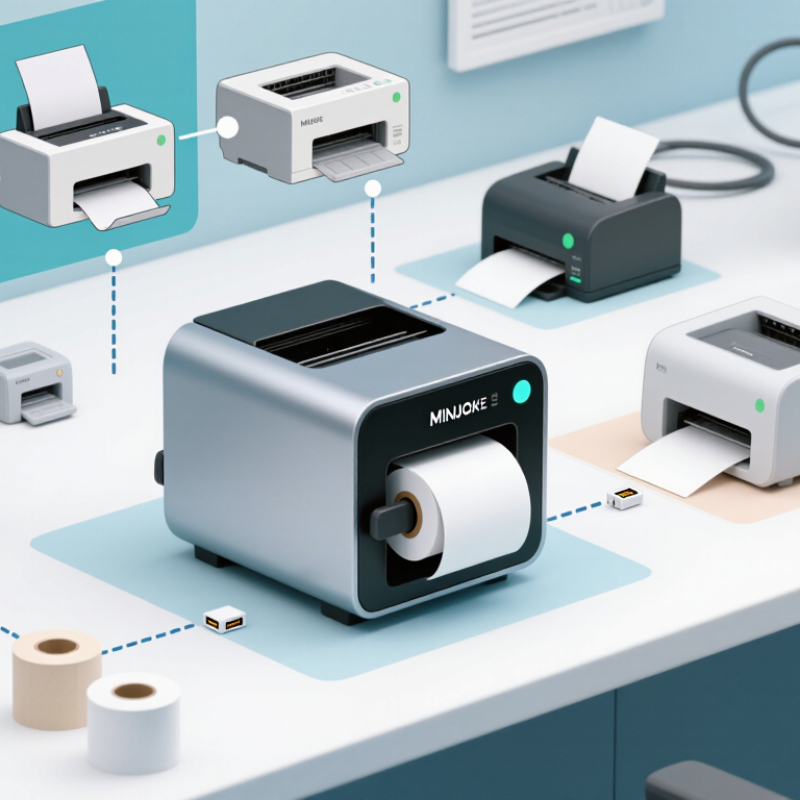
Define Your Printing Needs and Operating Environment
Define your printing needs before comparing thermal receipt printers. Estimate the number of receipts printed during a typical hour and during peak periods. Check the required paper width, receipt length, and print clarity, especially if receipts include small text or logos. A quiet café counter has different demands from a busy checkout desk. Small details matter.
Next, examine the operating environment. Measure the available counter space and consider where paper rolls will be stored and changed. Dust, heat, spills, and frequent handling can affect daily reliability. Confirm that the printer’s connection options work with your point-of-sale system, and check whether cables can reach safely. Think about maintenance, too: an easy-to-open cover can save time during a rush. It is easy to focus on speed alone; I would still test the setup with real staff and actual receipts before choosing. A specification sheet cannot show every awkward cable or cramped counter.
Tips: Print a sample receipt at peak volume. Check readability, paper loading, and connection stability. If the printer struggles in its intended location, revise the setup rather than assuming staff will adapt.
Compare Print Width, Speed, and Resolution
Choose print width around the receipt customers actually need. A 58 mm printer suits compact receipts and narrow counters; 80 mm paper gives more room for item descriptions, logos, and larger type. Check printable width, not just roll width, because the paper edges are not fully usable. Grand View Research estimated the global thermal printer market at about US$4.4 billion in 2023, reflecting broad use across retail and service settings. That figure does not tell you which printer fits your counter, though.
Speed matters most during queues. Many desktop receipt printers list maximum speeds near 150–300 mm per second, but dense graphics, long receipts, and connection delays can reduce real output. Test with a typical receipt, not a blank text sample. The fastest rating is not always the fastest checkout. Resolution also changes the result: 203 dpi handles ordinary text and barcodes, while 300 dpi can sharpen small logos and fine graphics. For standard receipts, higher resolution may add cost without a visible benefit.
Tips: Print the same sample on each candidate device. Check barcode edges, small text, and how long a ten-item receipt takes. Confirm paper width and usable counter space, too. One detail is easy to miss: a crisp test print may still look crowded under dim shop lighting. Look at it where staff and customers will actually read it.
Check Connectivity and POS System Compatibility
Before choosing a thermal receipt printer, check the ports on your POS terminal and the connection options the printer supports. USB suits a nearby checkout counter, while Ethernet can serve a printer shared across a wired network. Bluetooth may reduce cable clutter, but walls and nearby devices can affect its signal. A connector that fits is not enough. Confirm that your POS software supports the printer’s command language and that a compatible driver is available for your operating system.
Tips: Ask your POS provider which printer models and connection types are supported. Then print a test receipt before relying on the setup during busy hours.
Check practical details, too. Make sure the software can select the correct paper width and control cutting, if your workflow needs it. If staff use more than one checkout device, test each one; a setup that works on a desktop may behave differently on a tablet. Watch for slow printing, missing characters, or receipts that cut in the wrong place. These small issues are easy to overlook in a product comparison. Compatibility can also change after software updates, so keep setup notes and retest after major changes. I would not assume every listed feature works smoothly in every POS environment. A brief hands-on check is less polished than a spec sheet, but it gives you more useful evidence.
Choosing a Thermal Receipt Printer: Connectivity & POS Compatibility
The bars show theoretical maximum link rates for common connectivity standards, not real-world printing speeds. Before choosing a printer, check that its connection type matches your POS device and confirm operating-system driver and printer-command compatibility. Receipt printing typically requires far less bandwidth than these maximum rates.
Assess Paper Handling, Setup, and Maintenance
Check paper handling before choosing a thermal receipt printer. Match the printer’s supported paper width and roll diameter to the receipts you actually use. A roll that is too wide may not feed smoothly, while an oversized roll can press against the cover. Confirm the paper loads easily and feeds without curling at the exit. Keep rolls dry and away from heat; damaged or poorly stored paper can produce faint, uneven text. Test a sample receipt with your usual logo or item list. Small details matter.
Setup should fit your counter, not just the product specifications. Check that the printer’s connection type works with your register or computer, and install the correct driver before a busy shift. Print a test receipt, then check alignment, cutting, and text clarity. A clean test does not guarantee a trouble-free week. During routine maintenance, switch off the printer and let the print head cool. Clean it only as directed in the manual, using suitable materials; abrasive tools can cause damage. Remove scraps from the paper path and inspect the cutter if edges become ragged. Keep one spare roll nearby. It is easy to overlook until the last receipt prints.
Match a MINJCODE Model to Your Budget and Workload
Choose a thermal receipt printer by matching its daily workload to your actual budget. A small counter printing a few dozen receipts per day may not need the speed or duty capacity of a busy café. Estimate peak-hour volume, not just the daily total. At lunch, a slow printer can leave customers waiting. Small shops differ. Also check receipt width, cutter needs, and available connections before comparing prices.
Look beyond the purchase cost. Paper rolls, replacement parts, setup time, and compatibility with your point-of-sale system all affect long-term value. A lower-priced model may be sensible for occasional printing, while steady, high-volume use can justify a faster unit built for frequent operation. Test the printer with your own receipts and software when possible. One detail is easy to miss: a printer that works on a desk may be awkward beside a crowded till. I would reconsider the choice if staff struggle to reload paper during a rush.
Tips: Write down your busiest hour, receipt size, and connection type before shopping. Compare those needs against each model’s specifications, then leave room in your budget for paper and maintenance.
 English
  Česká republika
 Deutsch
 Dutch
Dutch Polska